
Most GA4 conversions that stop tracking come down to one of two things: a tagging or configuration error, or a consent and processing delay that just looks like a failure. The first move is always the same. Trigger the conversion yourself, then check DebugView and the Realtime report on the exact GA4 property you expect data in.
From there, you're on one of two paths:
- The event shows up in DebugView. The collection is working. Your problem lives in GA4 configuration, the key event toggle, or the Google Ads link.
- The event never shows up. The problem is upstream — a tag that isn't firing, a broken trigger, or consent settings blocking the request before it leaves the browser.
TL;DR:
- Most conversion tracking failures stem from either a tagging or configuration error, or consent and processing delays that mimic a failure.
- Confirm in DebugView whether the event fires instantly; if not, the issue lies with tags, triggers, or browser blocking before GA4 receives data.
- Event name mismatches, non-retroactive key event toggles, or exceeding GA4's 30 key event limit account for many configuration-based missing conversions.
- Consent mode restrictions can cause GA4 to send incomplete data, reducing accurate measurement without entirely losing events, especially when users deny storage permissions.
- Ensuring proper GA4 to Google Ads linking, import settings, and GCLID presence is essential for conversions to show in ads reporting.
Table of Contents
- Quick Checklist: What to Check First When GA4 Conversions Stop Tracking
- How Do You Verify a GA4 Event Is Actually Firing?
- Why Do GA4 Configuration Settings Cause Missing Conversions?
- How Does Consent Mode Affect GA4 Conversion Tracking?
- Why Don't GA4 Conversions Show Up in Google Ads?
- What Breaks Cross-Domain Tracking and Attribution?
- Can Server-Side Tagging Cause Conversions to Drop?
- How Long Does It Take for GA4 Conversions to Show Up?
- A Step-by-Step Workflow for Fixing One Broken GA4 Conversion
- What A&T Digital Agency Sees Most Often in Client Accounts
- Why the Real Fix Is Usually Simpler Than It Looks
- Get Expert Help Fixing GA4 and Google Ads Tracking Gaps
- Key Takeaways
- Sources
Quick Checklist: What to Check First When GA4 Conversions Stop Tracking
Run this before you touch a single setting. It takes ten minutes and rules out the biggest offenders.
- Trigger the conversion live and watch DebugView and Realtime simultaneously.
- Open GTM Preview or your browser's Network tab and confirm a request to
google-analytics.com/g/collectfires with the correct measurement ID. - Check the exact event name and casing against what's configured in GA4, and confirm it's toggled as a key event.
- If the conversion feeds Google Ads, verify the GA4 to Google Ads link exists and the conversion is actually imported.
- Check for recent GTM publishes, site deploys, or consent banner changes that line up with when the drop started.
That last step catches more issues than people expect. A checklist-driven approach that maps recent changes to the drop window resolves most sudden conversion drops faster than diving straight into GA4's settings menus.
How Do You Verify a GA4 Event Is Actually Firing?
Before you change a single GA4 setting, confirm the event exists at all. This is the step people skip, and it's why they waste hours reconfiguring a setting that was never the problem.
DebugView is your first stop. Turn on debug mode (via the GA4 debug extension or a debug_mode parameter), trigger the action, and watch for the event to appear with its parameters listed. Google's own documentation on key events confirms DebugView flags key events as they happen, which makes it the fastest way to prove collection at the property level.
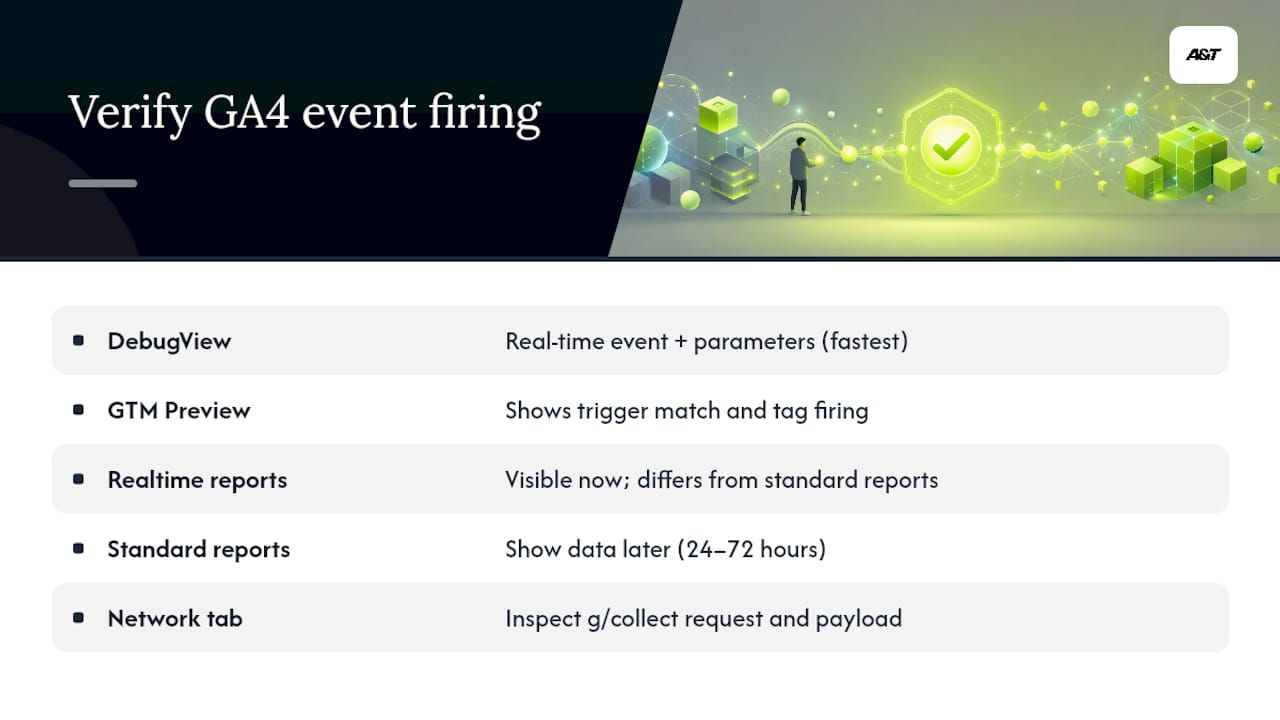
Realtime and DebugView show you now. Standard reports show you later, usually 24 to 72 hours after collection. Don't compare the two and panic when they disagree.
GTM Preview mode tells you a different story: whether the trigger conditions actually matched, and whether only one tag fired instead of two duplicates. Network tab inspection is the ground truth. Look for the /g/collect request, confirm the measurement_id matches your property, and check the payload for the exact event name and parameters.
Watch for duplicate GA4 implementations (one in GTM, one hardcoded), staging measurement IDs left in production, or a CSS selector that stopped matching after a redesign.
Pro Tip: If DebugView shows nothing at all, stop debugging GA4 settings immediately. The problem is before GA4 ever sees the request, so look at the tag and trigger, not the property configuration.
Why Do GA4 Configuration Settings Cause Missing Conversions?
If the event fires but doesn't count, the fix usually lives in GA4's admin panel, not your tag manager. A few specific traps catch even experienced marketers.
- Event name mismatches. GA4 is case-sensitive.
Purchaseandpurchaseare two different events to the system, and a single typo silently breaks the whole connection. - Non-retroactive key event toggling. Marking an event as a key event only counts events going forward. Flip the switch today and last week's conversions never retroactively count, a detail practical troubleshooting guides consistently flag as a top source of confusion.
- Counting method mismatch. GA4 lets you count "once per event" or "once per session." A lead form set to once per session will undercount if users submit it twice in one visit.
- The 30 key-event limit. GA4 properties cap out at 30 key events. Hit the ceiling and new conversions quietly fail to register as key events.
- Data filters and internal traffic exclusions. A filter meant to exclude your office IP can just as easily swallow real customer conversions if it's scoped too broadly.
How Does Consent Mode Affect GA4 Conversion Tracking?
analytics_storage controls whether GA4 can set cookies for measurement. ad_storage controls whether Google Ads can use that data for attribution and bid optimization. Deny both, and you don't lose the event entirely, but you lose the clean, cookie-based version of it.
- Check the
gcsparameter in your network requests.G111typically signals granted consent;G100signals denial across the board. - When users deny consent, GA4 still sends cookieless pings and fills gaps with modeled conversions rather than directly attributed ones, which explains a conversion count that looks lower than your actual sales.
- If your consent banner recently changed, check whether it now blocks
analytics_storageby default until a user acts.
Why Don't GA4 Conversions Show Up in Google Ads?
GA4 showing the conversion is only half the job. Google Ads needs its own chain of settings lined up before that number shows in your campaign reporting.
- Confirm the GA4 to Google Ads link exists, the conversion is imported into Ads, auto-tagging is enabled, and the link settings allow personalized advertising. Miss any one of these and Ads shows other imported metrics fine while conversions stay stuck at zero, a pattern Google's own Ads support threads confirm is common.
- Ecommerce purchase events need a numeric value and an ISO 4217 currency code. A string value or a missing currency field reports as zero revenue even when the sale happened.
- Confirm the GCLID is actually arriving on paid clicks. No GCLID, no Ads attribution, no matter how clean your GA4 setup is.
What Breaks Cross-Domain Tracking and Attribution?
Sending a user from your marketing site to a separate checkout domain is where a lot of attribution quietly dies. GA4 relies on the _gl linker parameter to carry session context across that handoff, and if it's stripped somewhere in the redirect chain, GA4 treats the visitor as a brand-new session.
- Check that
_glactually appears in the URL when a user crosses domains. - Hosted checkout pages and third-party forms often need an explicit linker configuration or a return URL that preserves the original parameters.
- Watch the thank-you page for unexpected referral sources, and check your unwanted-referral list in GA4 admin against your actual checkout domains.
Can Server-Side Tagging Cause Conversions to Drop?
Server-side setups add a layer that can fail silently. Your server container needs a GA4 client and a GA4 tag correctly mapped to forward the incoming event. Miss that mapping, and the request arrives at your server and goes nowhere.
- Compare the client-side
/g/collectpayload against your server-side request logs to spot missing fields or a missingclient_id. - DataLayer variable names and CSS selectors shift with site updates. A sudden drop right after a release almost always traces back to a renamed variable the tag no longer reads.
How Long Does It Take for GA4 Conversions to Show Up?
Realtime and DebugView confirm collection instantly. Standard reports lag 24 to 72 hours behind, which is exactly the window most panicked troubleshooting happens in for no reason.
- Check Admin > Attribution Settings to see your lookback window. A short window can deny credit to a click that happened outside it, even though the conversion is real.
- Give any configuration change 48 to 72 hours before deciding it failed.
A Step-by-Step Workflow for Fixing One Broken GA4 Conversion
- Pick one conversion action. Document its expected event name, trigger condition, and the environment you're testing in (staging vs. production).
- Run a controlled test. Trigger it once while watching DebugView, GTM Preview, and the Network tab together. Record exactly what you see: did the event fire, and what parameters did it carry?
- Branch based on what you found. No event in DebugView means a tag or trigger fix. Event present but not counted points to GA4 config: name mismatch, key event toggle, or counting method. Event counted in GA4 but missing from Ads means the link or import settings.
- Check change history. Review GTM's publish history and GA4's property change log for edits made right around when the drop started. This single step, recommended by symptom-based troubleshooting frameworks, often finds the exact cause in minutes.
Pro Tip: Change one variable at a time. Fixing the tag, the GA4 config, and the consent settings simultaneously means you'll never know which fix actually worked, and you risk introducing a second problem while chasing the first.
What A&T Digital Agency Sees Most Often in Client Accounts
Performance marketing lives or dies on accurate conversion data, which is why tracking hygiene sits at the center of how Atdigiagency runs every Google Ads and Meta account it manages. One recurring pattern: a client's conversion count dropped after a consent management platform update delayed when analytics_storage granted, which quietly starved GA4 of clean events until the CMP and GTM triggers were resequenced to fire in the right order.

Persistent attribution breaks, server-side mapping issues, or consistently low consent rates usually call for measurement modeling that goes beyond a DIY fix.
Why the Real Fix Is Usually Simpler Than It Looks
Most teams overcomplicate GA4 troubleshooting. They jump straight into custom dimensions, attribution model comparisons, or a full tracking rebuild when the actual break was a single mismatched event name or a consent banner that shipped a week earlier than anyone noticed. The evidence-first sequence, DebugView, then GTM Preview, then GA4 admin checks, resolves the majority of cases in under an hour precisely because it forces you to confirm collection before you touch configuration.

The conventional advice on this topic tends to lead with GA4's settings menu: check your key event toggle, check your counting method, check your Ads link. That's not wrong, but it's the second step, not the first. If you start configuring before you've confirmed the event is actually firing, you're debugging a symptom while the real cause, a broken tag or a blocked consent state, sits untouched.
What should change in how marketers approach this: treat every missing conversion as a collection problem until proven otherwise. Only after DebugView confirms the event exists should you spend a single minute on GA4's admin panel. Skipping that order is why "fixes" so often don't actually fix anything, and why the same conversion breaks again three weeks later.
— Ann
Get Expert Help Fixing GA4 and Google Ads Tracking Gaps
Chasing a broken consent trigger or a mismatched key event across GTM, GA4, and Google Ads eats hours you'd rather spend on strategy. Atdigiagency runs conversion tracking audits as a standard part of every Google Ads engagement, checking DebugView output, GTM publish history, server-side mappings, and consent configuration together instead of one setting at a time. That combination catches the compounding issues a single-tool check misses, like a consent delay stacked on top of a currency formatting error.
If your conversion numbers have looked off for more than a few days, request a tracking audit through Atdigiagency's Google Ads management service and get a clear diagnosis of what's actually broken before you spend another campaign cycle flying blind on bad data.
Key Takeaways
Most GA4 conversion failures trace back to a tagging or configuration mismatch, and DebugView is the fastest way to isolate which layer actually failed.
| Point | Details |
|---|---|
| Check DebugView first | Confirm the event actually fires before touching any GA4 configuration setting. |
| Watch for case sensitivity | Event names must match exactly; a single character difference breaks the connection. |
| Key event toggles aren't retroactive | Marking an event as a key event only counts conversions going forward, not past activity. |
| Confirm the Google Ads link and import | Conversions can appear in GA4 while staying invisible in Ads if the import step was skipped. |
| Get a professional audit for recurring breaks | Atdigiagency reviews GTM, GA4, and Ads configurations together to catch compounding tracking issues. |
Sources
- Report on key events - Analytics Help
- Key Events Not Working? Here are (Analytics Mania)
- GA4 Conversions Not Counting? Here's Why (And How to Fix It)
- GA4 Conversions Dropped Overnight? Fix-First Checklist